

 |
Contact Us |
 |
Printer Friendly |
 |
Close this window |
What is 24-7 Connect? |
|
| 24-7 Connect Virtual Expo is a permanent online tradeshow featuring listings and information-packed virtual booths for thousands of industry suppliers, arranged by product category. There are more than 100 detailed information subcategories, all searchable by product and supplier. | |
| How do I become an Exhibitor? | |
| If you are interested in becoming an Exhibitor in 24-7 Connect please contact your CSP Sales Representative or contact Mary Magnani at: phone: 203-951-3184 / email: mmagnani@cspnet.com | |
| Is there a cost to attend the Tradeshow? | |
| No. The 24-7 Connect Virtual Tradeshow is open to all registered attendees for free 24-7/365 days a year. | |
| How do I register/login to the Tradeshow? | |
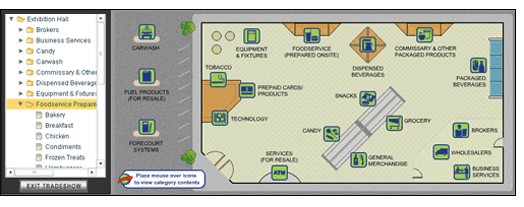
From the Home page, simply enter your email address at the login and click "Enter." All current CSP Daily News subscribers are automatically registered; if you are not a CSP Daily News subscriber, you will be automatically directed to a 24-7 Connect registration form. After logging in you will be directed to the Tradeshow listings. Select the desired Tradeshow you wish to browse and click “Enter.” The Virtual Tradeshow contains virtual booths for thousands of industry suppliers, arranged by product category/subcategory. Each product subcategory includes Featured “Premium” Vendors, which contain additional downloadable documents, imagery, and in some cases, video clips. All remaining exhibitors are listed below the “Premium” booths; these booths contain basic contact information for the vendor. A “How to Buy” button in these booths can provide links to wholesalers/distributors or other means to inquire about purchasing the exhibitor's products. > Click on the Convenience Store floorplan. View the pop-up menus by placing your mouse over the different category icons to see their subcategories. Click on a subcategory to view its “Featured Vendors” or “All Vendors” tabs. > Or, double click on the words “Exhibition Hall” in the left column to activate the drop-down listing of all available categories/subcategories. Click on a category and then click on a subcategory to view its “Featured Vendors” or “All Vendors” tabs. To switch from the “Featured Vendors” list to the “All Vendors” list within a subcategory, simply click on the “All Vendors” bar, found directly below the listed Featured Vendors. Recently Updated Vendors: To view the most recently updated vendors first, select “Newly” Updated from the “Sort Vendor” menu bar below the vendor listing. To view the vendors in alphabetical order, select “Alphabetically” from the Sort Vendor menu bar below the vendor listing. Click the company name of a vendor to be taken directly to a vendor's booth. |
|
| How do I use the Search Function? | |
In the search field located on the upper navigational bar, enter a keyword / company name that you wish to search and click Search. The search results box will appear. You can select to either Display Results by Vendor or to Display Results by Product by clicking on the appropriate column header. Note: For best results, enter a single keyword, and do not include a space after the word. Display Results by Vendor will display those vendors that have the keyword in their company name, company profile or category listing. Display Results by Product will display vendor's products and services which have that keyword either in the product name or product description. Click the company name of a vendor to be taken directly to a vendor's booth. Note: The search results window will remain open, but will automatically minimize upon entering a booth. Click the standard windows minimize/maximize/close icons in the upper right portion of the Search Results window to minimize/maximize/close the Search Results window. |
|
| Business Card Drop | |
| To drop your “virtual business card” in a vendor's booth to request to be contacted, click the “Drop a Business Card” sign or fishbowl. Your attendee contact information will already be completed. Type a message to the vendor in the space provided and click “Drop.” Your message along with your contact information will be forwarded to the vendor. |
 |
| Video | |
 Some Featured Premium Vendors offer streaming video for you to view in their booth. If there is a video being shown in a booth, to Pause, Play, Rewind or Mute the video being shown, use the standard video menu icons located directly beneath the video Some Featured Premium Vendors offer streaming video for you to view in their booth. If there is a video being shown in a booth, to Pause, Play, Rewind or Mute the video being shown, use the standard video menu icons located directly beneath the video being shown. |
|
| What are the different booth menu items? | |
About Us: For Featured Vendors, gives a brief profile of a company. Contact Us: Displays a company's contact information and relevant web links. How To Buy: For Featured Vendors, gives a list of wholesalers and distributors of a company's products, including links to their websites Products and Services: For Featured Vendors, contains downloadable product information sheets, brochures, etc. Displays and Promotions: For Featured Vendors, contains downloadable documents or image files offering a look at any displays or promotional materials available to retailers. Category Information: For Featured Vendors, contains downloadable research or white papers. |
|
| How do I view/download booth items? | |
To download / view an item, click the download icon If available, to view a thumbnail of the item click the image icon. To store an item in your briefcase click the briefcase icon |
|
| Attendee Briefcase | |
Booth History: - to view a history of the previous booths you have visited, select the HISTORY column header. Click the company name of a vendor to be taken directly to a vendor's booth. |
|
| Exit Tradeshow | |
| To Exit the Tradeshow, click the Exit Tradeshow button located underneath the Exhibition Hall drop-down menu. | |
| What are the System Requirements? | |
| 24-7 Connect functions best on a high broadband connection. You must have Flash Player 7 or higher to enter the Tradeshow. | |
| Technical Issues/Assistance | |
| If you are experiencing technical issues / difficulty please email vtsinfo@cspnet.com or call 203-951-3184 | |
|
|
|
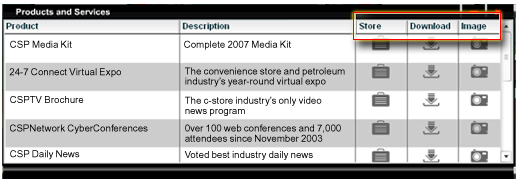
 for the item and follow the on-screen prompts.
 which will transfer that item to your attendee briefcase.
 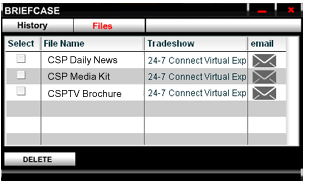 The Attendee Briefcase allows attendees to store different downloadable items from different Featured Vendors as well as view a history of the different booths you have visited. You can even email an item to an associate once you have stored it in your briefcase. An item stored in your briefcase will remain in your briefcase for 10 days.
  Briefcase Items:
  To email an item that is in your Briefcase